Skip to content
PCA Chicago Region

PCA Chicago Region

  • PCA Chicago Region
    • Club History
      • How It All Got Started
      • The History of Club Leadership
      • The Chronicles of PCA Chicago
    • Governance
      • Bylaws
      • Board Meetings
      • Officers & Board of Directors
      • Coordinators
      • The History of Club Leadership
    • Membership
    • Opportunities for you to Help PCA Chicago
    • Registering for Events
    • Articles
      • Autocross Articles
      • Club Race Articles
      • Concours Articles
      • Drivers Ed Articles
      • Driving Tour Articles
      • Rallye Articles
      • Scene Articles
      • Social Articles
      • Tech Articles
    • Photos
      • Autocross Photos
      • Club Race Photos
      • Concours Photos
      • Drivers Ed Photos
      • Driving Tours Photos
      • Rallye Photos
      • Social Photos
      • Street Survival Photos
      • Tech Photos
    • Results
      • Autocross Results
      • Club Race Results
      • Concours Results
      • Rallye Results
    • Charity of the Year
    • PCA National Service Award
    • Sponsorship Opportunities
    • The Chicago Scene
    • Submitting Content for The Scene or the Website
    • PCA Chicago Region Merch
    • Classified Advertising
    • Join PCA
  • Driving Events
    • Autocross
    • Club Racing
    • Drivers Ed
    • Driving Tours
    • Great Drives
    • Rallye
    • Street Survival
  • Non-Driving Events
    • Concours
    • Social
    • Tech
  • PCA
    • PCA Home
    • Zone 13 Home
    • National Calendar
    • National News
    • Panorama Magazine
    • PCA Insider Podcast
    • PCA History Book
    • National Web Store
    • National Classifieds (The Mart)
    • Join PCA
  • Schedule

Tech – 2016

Post navigation

Tech – 2015
Tech – 2017
All Photos
  • Autocross Photos
  • Club Race Photos
  • Concours Photos
  • Drivers Ed Photos
  • Driving Tours Photos
  • Rallye Photos
  • Social Photos
  • Street Survival Photos
  • Tech Photos
More
  • Event Schedule
  • 2026 Event Guide
  • Charity of the Year
  • Membership
  • Submitting Content for The Scene or the Website
  • Opportunities for you to Help PCA Chicago
  • Articles
  • Photos
  • Results
  • Registering for Events
  • Porsche YouTube Channel
  • PCA YouTube Channel
  • Sponsors
PCA Chicago Region

PCA Chicago Region

© 2026 PCA Chicago Region. All Rights Reserved.

  • Sponsorship
  • Registering for Events
  • Privacy Policy

If you have never digitally signed a PDF, these steps will help you through the process.

It is important that you have selected all of the candidates you wish to vote for as well as entered your name, email address, and member number BEFORE you sign the ballot because the fields for associated with the signature will become read-only and will not be able to be changed once the document has been signed.

Open the ballot in the Adobe Reader application.  You cannot sign a PDF document from within a browser.

Once you have completed your ballot, click the signature portion of the ballot below where you selected your desired candidates as shown in highlighted selection of the ballot below:

If you have not configured a digital signature, a prompt similar to what is shown below will be displayed.  Click the Configure Digital ID option.
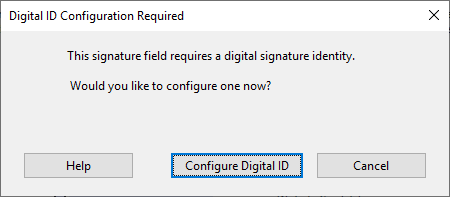
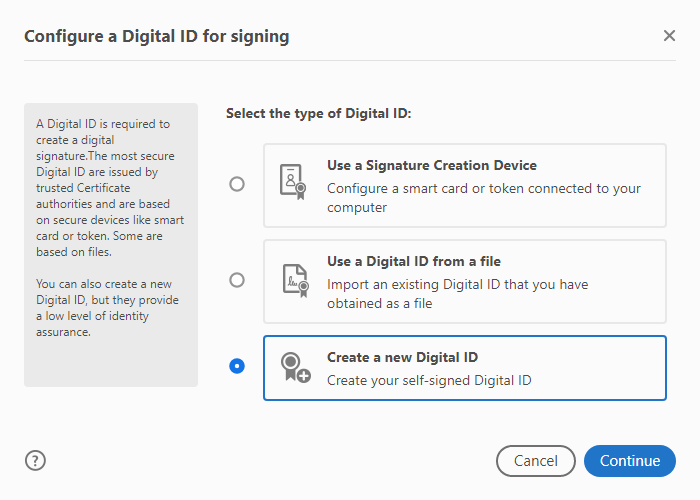
This will bring up a series of dialogs that will guide you through the creation of a digital id on your computer.  Depending on the version of the Adobe Reader you have installed, the dialogs may be slightly different but the information they will request, and the end result will be the same.


Select Create a new Digital ID and click Continue

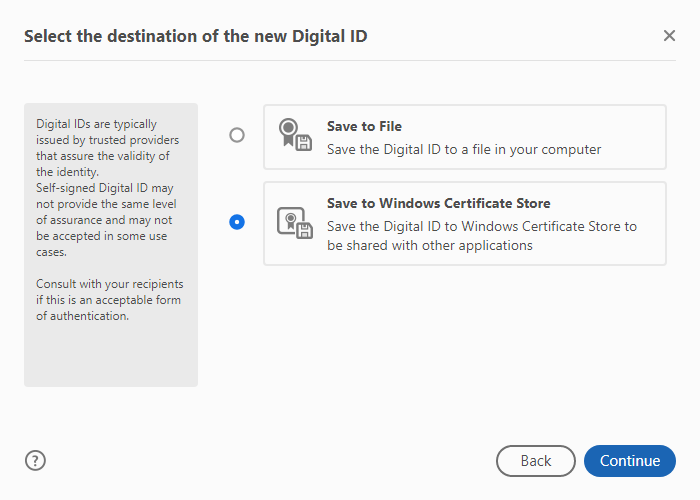
Select Save to Windows Certificate Store and click Continue

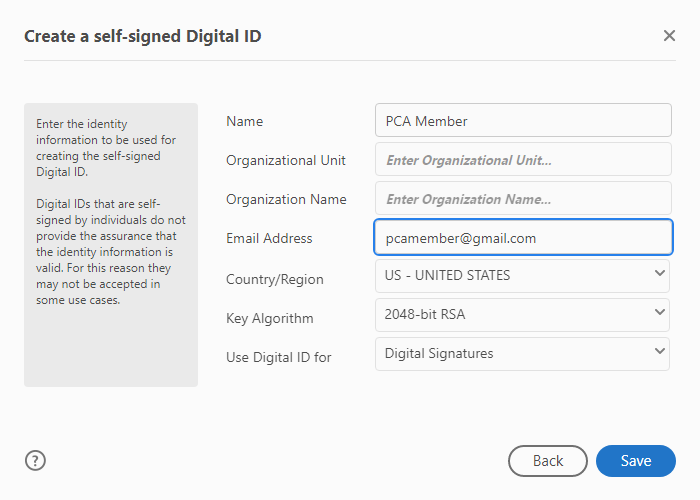
Enter your name and the email address you provided the PCA National website (PCA.org) and click Save

Select the Digital ID you want to use to sign the document and click Continue
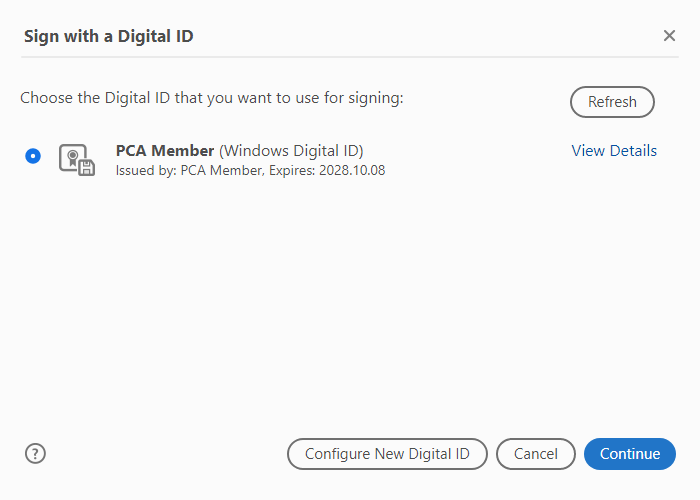

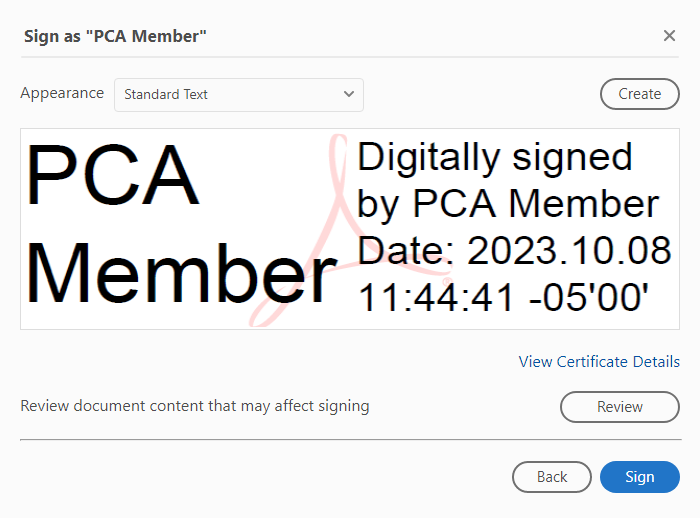
Click Sign

You will now be prompted to save the signed PDF to your computer.
This is the file you will then email to be counted.
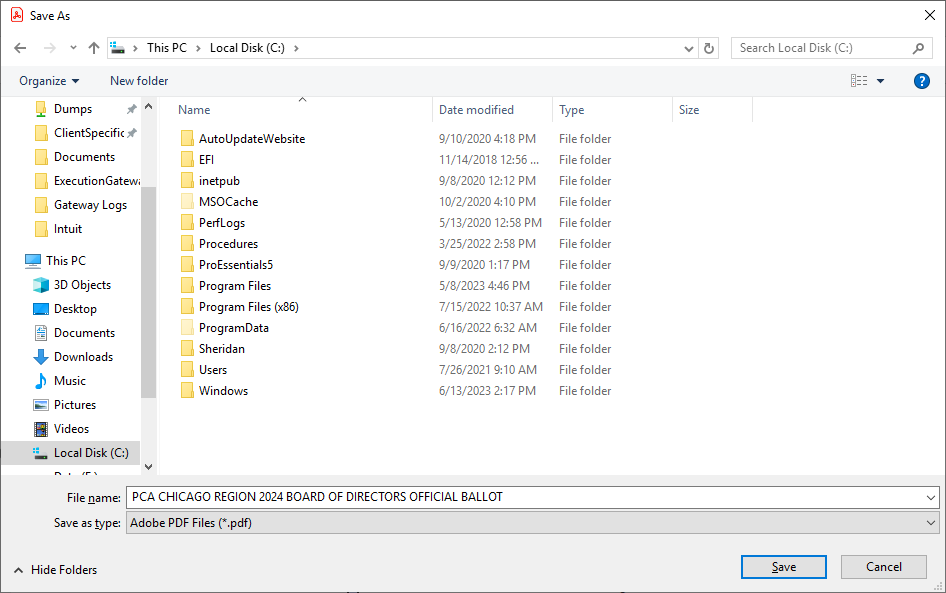

If you need to configure a second signature on your computer for another member in your household, you can repeat this process.

If you do have two memberships in your household, and you use the same ballot, remember to save the ballot after signing the second time.  It is OK to overwrite the ballot you saved when you signed it the first time.

Finally, don’t forget where you saved the ballot, as that is the file you will need to submit.

If you use Outlook, you can add the shared calendar by following these steps:

  • Select Calendar
  • Select either the From Internet… option from the Open Calendar drop-down on the Outlook ribbon or right click on My Calendars and select From Internet…
  • In the Location field, enter the following”
    https://calendar.google.com/calendar/ical/eventschedule%40pca-chicago.org/public/basic.ics
  • click OK

If you want to have our calendar overlay your default calendar in Outlook once you have followed the steps above:

  1. In Calendar, in the Navigation Pane, select the check box of another calendar that you want to view.
    The calendar that you selected will open to the right of the calendar that is already displayed. Each successive calendar opens to the right of the one most recently opened.
  2. On the calendar’s tab, click View in Overlay Mode (the left-facing arrow on the calendar tab.) That calendar is now in overlay mode with the one you opened first — usually your default calendar.

If you use the native Calendar application on your iPhone and you want our events to be automatically added to your calendar, follow these steps on your iPhone:

  • Open Settings > Calendar
  • Tap Accounts
  • Tap Add Account
  • From the list of account types, tap Other
  • Tap Add Subscribed Calendar
  • In the Server field, enter the following:
    https://calendar.google.com/calendar/ical/eventschedule%40pca-chicago.org/public/basic.ics and tap Next
  • Tap Save

Now, when you open the iPhone Calendar application, our events will be automatically merged in.


These steps are for IOS 14 and later and could be slightly different for other versions.

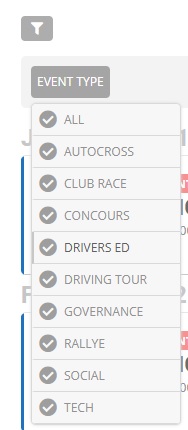
1) Click on the filter Icon

2) Click on the Event Type Box
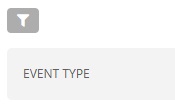
3) Select an Event Type From the List
X